My Page Has Disappeared
If a page seems to be missing from your site or navigation menu, don't worry — it's almost certainly still there. Here's how to track it down and fix it.
Go to Your Pages List
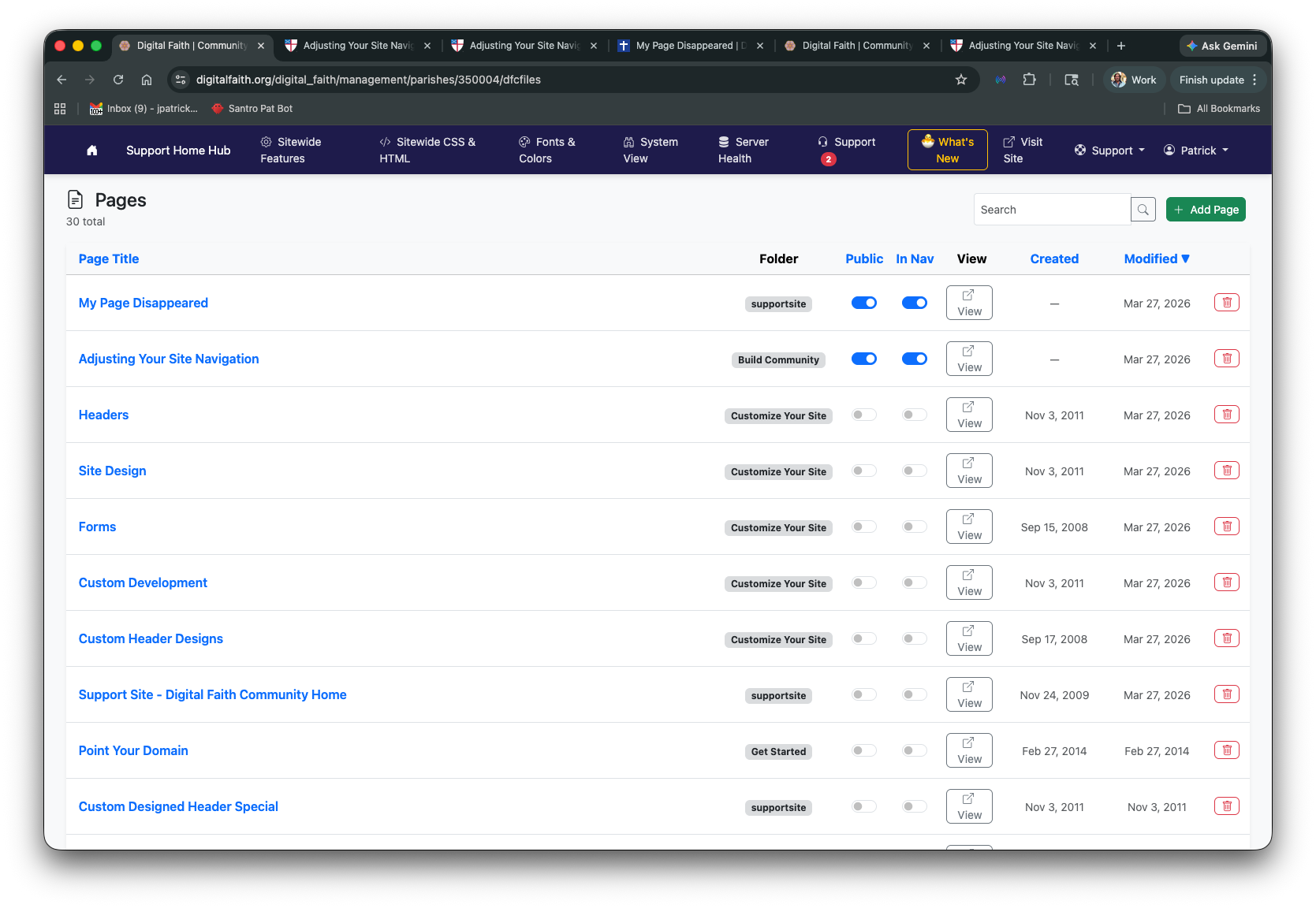
From your admin dashboard, look for the Pages panel and click View All. This shows every page on your site in one list — including pages that may be hidden or removed from navigation.
Search for Your Missing Page
Use the Search box in the upper right to type part of the page's title. The list will filter as you type.
If you're not sure of the exact title, scroll through the list or use the Folder column to find pages grouped by section of your site.
Check Whether the Page is Public and In Nav
Once you find your page, look at the two toggle columns to the right of its name:
| Toggle | What it controls |
|---|---|
| Public | Whether visitors can see the page at all |
| In Nav | Whether the page appears in your navigation menu |
Check Which Folder the Page Is In
The Folder column shows which section of your site the page belongs to. If a page is in the wrong folder, it may be appearing under the wrong part of your navigation — or not at all.
To move it, go to Folders & Navigation, open the folder the page is currently in, and drag it to the correct folder.
Still Can't Find It?
Try sorting the page list by clicking the column headers — sorting by Modified (newest first) can help you quickly spot pages that were recently changed. You can also sort by In Nav to see at a glance which pages are currently in your menu and which aren't.
If the page doesn't appear in the list at all, it may have been deleted.
Contact helpdesk@digitalfaith.orgOur team can look into restoring deleted pages on your behalf.
Updated March 2026