News & Event Feeds
Want your latest news and upcoming events to show up automatically on your pages? Feeds do exactly that — no manual updates, no copy-pasting. Just set it up once and your content stays current.
Just want to show news on your homepage?
Here's the fastest path. You'll be done in under 2 minutes.
Go to Management, navigate to your homepage, and click the Feeds tab at the top of the editor.
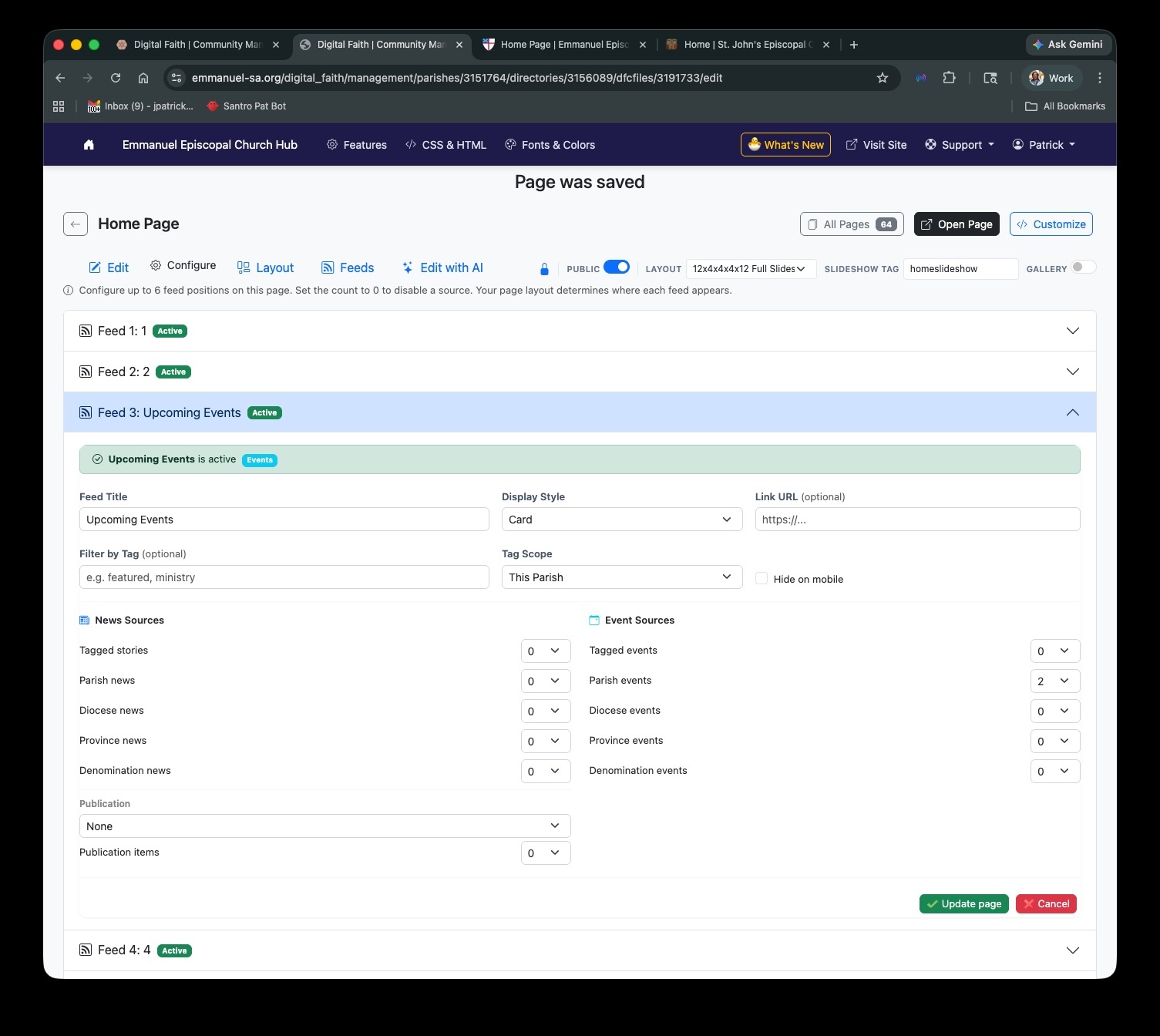
Click Feed 1 to expand it. Set the title to "Latest News", pick Card style, and set Parish news count to 5.
Click Save. Your homepage now automatically shows your 5 most recent news articles — and updates itself whenever you publish new ones.
Where Do Feeds Appear on the Page?
This is the question we hear most often. Your page has 6 feed positions — and where each one shows up depends on your page layout. Here's how they typically map out on a standard 2-column layout:
Main content (top)
Main content (below Feed 1)
Sidebar (top)
Sidebar (below)
Bottom left
Bottom right
Feed Position Quick Reference
| Feed | Typical Position | Best For |
|---|---|---|
| Feed 1 | Main content area (top) | Featured news, landing page hero feed |
| Feed 2 | Right sidebar (top) | Upcoming events, compact news list |
| Feed 3 | Main content area (below Feed 1) | Second news category, events below news |
| Feed 4 | Right sidebar (below Feed 2) | Additional sidebar content |
| Feed 5 | Bottom — left half | Diocese news, broader content |
| Feed 6 | Bottom — right half | Province/denomination news |
Configuring Your Feed
Once you've clicked on a feed position to expand it, here's what each setting does and when to use it.
Feed Title
This is the heading your visitors will see above the feed. Make it clear and specific — your visitors should know at a glance what they're looking at.
Good examples:
- Latest News
- Upcoming Events
- Ministry Updates
- Youth Ministry News
Display Style
Controls how the feed items look. Pick the style that fits where you're putting this feed:
- Card — Photo, title, date, and excerpt. Best for main content areas and landing pages.
- Headlines — Title and date only, compact. Best for sidebars where space is tight.
- Calendar — Date-focused layout, great for events.
- Title & Date — Simple, no images. Good when you want minimal clutter.
- Photo — Large photo with title overlay. Visually striking for featured content.
Link URL
Optional. If you fill this in, your feed title becomes a clickable link. A nice way to say "here's a preview — click to see all of them."
For example: if you have a dedicated News page at /news, paste that URL here so the feed title links to the full list.
Filter by Tag
Optional. Only show articles or events that have been tagged with a specific word. Leave it blank to show everything.
Example tags: featured, youth, outreach
Tag Scope — where should we look?
- This Parish — Only your parish's content
- Diocese — Content from across the diocese
- Province — Province-wide content
- Denomination — Denomination-wide content
Hide on Mobile
Check this to hide the feed on phones and tablets. This is especially useful for sidebar feeds — sidebars often stack awkwardly on mobile, so hiding them keeps your mobile layout clean and focused.
Common Recipes
Here are four of the most common feed setups. If one matches what you're trying to do, just follow the settings below — no need to figure it out from scratch.
Recent news on your homepage
The most common setup. Show your latest parish news in the main content area.
- Feed position Feed 1
-
Title
Latest News - Display style Card
- Parish news count 5
Upcoming events in the sidebar
A compact event list in the sidebar — perfect for keeping visitors informed without taking up much space.
- Feed position Feed 2
-
Title
Upcoming Events - Display style Headlines
- Parish events count 5
Featured news on a landing page
Only show articles you've specifically tagged as "featured" — great for curated highlights on a ministry landing page.
- Feed position Feed 1
- Display style Card
-
Filter by tag
featured - Tagged stories count 3
- Tag scope This Parish
Combined news + events feed
Show both news and events together in a single feed — a great "what's happening" section for any page.
- Feed position Feed 1
-
Title
What's Happening - Display style Card
- Parish news count 3
- Parish events count 3
Controlling How Many Items Appear
Inside each feed, you'll see separate count controls for News Sources and Event Sources. Set any count to 0 to turn that source off — it won't show anything for that source. You can mix and match freely.
News Sources
| Source | What it pulls in |
|---|---|
| Tagged stories | News matching your tag filter above |
| Parish news | Your own parish's recent news |
| Diocese news | News from across your diocese |
| Province/Denomination news | Broader Episcopal church news |
| Publication | News from a specific publication you select |
Event Sources
| Source | What it pulls in |
|---|---|
| Tagged events | Events matching your tag filter above |
| Parish events | Upcoming events from your parish |
| Diocese events | Events from across your diocese |
| Province/Denomination events | Broader Episcopal church events |
Need a Feed in a Specific Spot? Embed It Directly.
The Feeds tab puts feeds in predefined positions based on your layout. But sometimes you want a feed to appear right between two paragraphs, or inside a custom column — somewhere the layout doesn't have a designated feed slot.
For that, you can paste a widget tag anywhere in your page's HTML content. The tag gets replaced with live content when visitors view the page.
News Feed
<!-- dfc-widget:news_feed {"count": 5, "style": "cards"} -->
Events Feed
<!-- dfc-widget:event_list {"count": 5, "style": "list"} -->
Filtered by Tag
<!-- dfc-widget:news_feed {"count": 3, "tag": "featured"} -->
Widget Options
| Option | Values | Default |
|---|---|---|
count |
1–12 | 3 |
style |
cards, list |
cards |
tag |
any tag name | none (all) |
Feeds tab or widget tag — which should I use?
- Use the Feeds tab for most situations. It's simpler and works great for standard page layouts.
- Use widget tags when you need a feed to appear in a very specific spot within your page content — like between two sections or inside a custom column.
Tips to Get the Most Out of Feeds
Start with just one feed
Set "Parish news" to 5, give it a title, save — and you're done. You can always come back and add more sources or positions once you see how it looks.
Mix news and events in one feed
A single feed can show both news and events at the same time. Set counts for both and you'll get a combined "what's happening" feed — no extra work needed.
Use tags for targeted feeds
Tag your news articles with words like featured or youth-ministry when you write them, then filter a feed to that tag on the relevant page. Great for ministry-specific pages.
Empty positions are invisible
Don't worry about leaving feed positions 3–6 empty. An unconfigured feed slot won't add blank space or broken-looking boxes to your page — it simply won't render anything.
Still have questions?
If your feed isn't showing up where you expect, or you're not sure which settings to use, our support team is happy to help.
Contact Technical SupportUpdated March 2026